Shuf && cp
Hello! Posting this question for the good people of Bash.
I'm making a text-based game on Bash for my little kid to learn through it, bashcrawl styled.
I have a folder with monsters and I want them to get randomly copied into my current directory.
I do ls <source> | shuf -n 2 ,thus orrectly displaying them when I run the script for choosing the monsters.
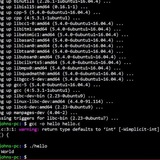
but i fail miserably when copying them in the directory in which I am. Tried using ' . ', $PWD , and dir1/* . ,plus basically every example I found on stack overflow, but to no avail. I keep on getting error messages. If I dont copy, I have them shuffled and displayed correctly.
Anyone here can throw me a line, would be of much help. Thank you!!
https://redd.it/1ror51z
@r_bash
Hello! Posting this question for the good people of Bash.
I'm making a text-based game on Bash for my little kid to learn through it, bashcrawl styled.
I have a folder with monsters and I want them to get randomly copied into my current directory.
I do ls <source> | shuf -n 2 ,thus orrectly displaying them when I run the script for choosing the monsters.
but i fail miserably when copying them in the directory in which I am. Tried using ' . ', $PWD , and dir1/* . ,plus basically every example I found on stack overflow, but to no avail. I keep on getting error messages. If I dont copy, I have them shuffled and displayed correctly.
Anyone here can throw me a line, would be of much help. Thank you!!
https://redd.it/1ror51z
@r_bash
Reddit
From the bash community on Reddit
Explore this post and more from the bash community
Why was BASH script post removed?
I was posting about the script I created for use as a cron job to edit the hosts file.
It met all the rules, 1, 2, 3, and 4. I don't understand why it wasn't allowed.
I had a feeling the technique I used might not be best practice, but was hoping for feedback about it to learn why, or maybe there are solutions I wasn't aware (although I did list some noting my difficulties in comprehending them such that this solution was the easiest for me to get working).
https://redd.it/1rl4lxt
@r_bash
I was posting about the script I created for use as a cron job to edit the hosts file.
It met all the rules, 1, 2, 3, and 4. I don't understand why it wasn't allowed.
I had a feeling the technique I used might not be best practice, but was hoping for feedback about it to learn why, or maybe there are solutions I wasn't aware (although I did list some noting my difficulties in comprehending them such that this solution was the easiest for me to get working).
https://redd.it/1rl4lxt
@r_bash
Reddit
From the bash community on Reddit
Explore this post and more from the bash community
tinybar - A simple taskbar utility for multiple shell session management
https://redd.it/1rkjl0w
@r_bash
https://redd.it/1rkjl0w
@r_bash
A simple, compact way to declare command dependencies
I wouldn't normally get excited at the thought of a shell script tracking its own dependencies, but this is a nice, compact pattern that also feels quite a bit like the usual dependency *import* mechanisms of more modern languages. There's a loose sense in which importing *is* what you're doing, essentially asking the system if you can pull in the requested command, and of course, as such, you're also documenting your required commands upfront.
declare -r SCRIPT_NAME="${0##*/}"
require() {
local -r dependency_name="$1"
local dependency_fqdn
if ! dependency_fqdn="$(command -v "$dependency_name" 2>/dev/null)"; then
echo "Error: dependency $dependency_name is not installed"
echo "$SCRIPT_NAME cannot run without this, exiting now"
exit 1
fi
printf -v "${dependency_name^^}_CMD" '%s' "$dependency_fqdn"
}
require pass
echo $PASS_CMD
The resulting variable assignment gives you a convenient way to pass around the full path of the command. It's a bit of magic at first blush, but I'd also argue it's nothing that a doc comment on the function couldn't clear up.
Just a cool trick that felt worth a share.
**EDIT:** swapped out `which` for `command`, a Bash builtin, per suggestion by /u/OneTurnMore.
https://redd.it/1rrdofl
@r_bash
I wouldn't normally get excited at the thought of a shell script tracking its own dependencies, but this is a nice, compact pattern that also feels quite a bit like the usual dependency *import* mechanisms of more modern languages. There's a loose sense in which importing *is* what you're doing, essentially asking the system if you can pull in the requested command, and of course, as such, you're also documenting your required commands upfront.
declare -r SCRIPT_NAME="${0##*/}"
require() {
local -r dependency_name="$1"
local dependency_fqdn
if ! dependency_fqdn="$(command -v "$dependency_name" 2>/dev/null)"; then
echo "Error: dependency $dependency_name is not installed"
echo "$SCRIPT_NAME cannot run without this, exiting now"
exit 1
fi
printf -v "${dependency_name^^}_CMD" '%s' "$dependency_fqdn"
}
require pass
echo $PASS_CMD
The resulting variable assignment gives you a convenient way to pass around the full path of the command. It's a bit of magic at first blush, but I'd also argue it's nothing that a doc comment on the function couldn't clear up.
Just a cool trick that felt worth a share.
**EDIT:** swapped out `which` for `command`, a Bash builtin, per suggestion by /u/OneTurnMore.
https://redd.it/1rrdofl
@r_bash
Reddit
From the bash community on Reddit
Explore this post and more from the bash community
I built a free Bash PS1 prompt generator — looking for Linux user feedback
Hi everyone, I built a small web tool to help generate custom Bash PS1 prompts visually.
You can add prompt elements (date/time, user, host, path, git info, symbols), style them with colors/text attributes, reorder them, and instantly copy the final prompt code.
I just published the first public release and I’d really appreciate feedback from Linux users:
* Is the generated output clean and practical for real shells?
* Which prompt elements are missing?
* Any UX issues or bugs on your distro/browser?
Project link: [https://neiki.eu/bash-prompt-generator/](https://neiki.eu/bash-prompt-generator/)
GitHub: [https://github.com/jindrichstoklasa/bash-prompt-generator](https://github.com/jindrichstoklasa/bash-prompt-generator)
Thanks — even short feedback is super helpful.
https://redd.it/1rr3eie
@r_bash
Hi everyone, I built a small web tool to help generate custom Bash PS1 prompts visually.
You can add prompt elements (date/time, user, host, path, git info, symbols), style them with colors/text attributes, reorder them, and instantly copy the final prompt code.
I just published the first public release and I’d really appreciate feedback from Linux users:
* Is the generated output clean and practical for real shells?
* Which prompt elements are missing?
* Any UX issues or bugs on your distro/browser?
Project link: [https://neiki.eu/bash-prompt-generator/](https://neiki.eu/bash-prompt-generator/)
GitHub: [https://github.com/jindrichstoklasa/bash-prompt-generator](https://github.com/jindrichstoklasa/bash-prompt-generator)
Thanks — even short feedback is super helpful.
https://redd.it/1rr3eie
@r_bash
neiki.eu
Bash Prompt Generator
Create custom PS1 prompts for Bash with an interactive generator.
I built a custom AST-based shell interpreter in the browser. Looking for edge cases to break it.
https://redd.it/1rr1a2u
@r_bash
https://redd.it/1rr1a2u
@r_bash
Reddit
From the bash community on Reddit: I built a custom AST-based shell interpreter in the browser. Looking for edge cases to break…
Explore this post and more from the bash community
Beginner Question automate install pkgs
I'm install Termux fresh and have gathered a list of tools below which I want to feed into: pkg install <contents of list.txt> cleanly line by line or glob.
list.txt:
tldr
ncdu
python-pip
fzf
wget
curl
p7zip
tar
fd
ripgrep
rclone
nano
tmux
cava
cmatrix
zip
unzip
cmake
mplayer
nmap
make
pkg-config
nodejs
tcpdump
netcat-openbsd
yt-dlp
busybox
proot-distro
htop
eza
git
zellij
lolcat
fastfetch
bat
dua
rsync
starship
mpv
ffmpeg
dust
duf
bottom
neovim
procs
lazygit
tree
vim
openssh
clang
python
What's the proper syntax to pass to pkg install list.txt 📚
pkg install $(cat list.txt) correct?
https://redd.it/1rrohj7
@r_bash
I'm install Termux fresh and have gathered a list of tools below which I want to feed into: pkg install <contents of list.txt> cleanly line by line or glob.
list.txt:
tldr
ncdu
python-pip
fzf
wget
curl
p7zip
tar
fd
ripgrep
rclone
nano
tmux
cava
cmatrix
zip
unzip
cmake
mplayer
nmap
make
pkg-config
nodejs
tcpdump
netcat-openbsd
yt-dlp
busybox
proot-distro
htop
eza
git
zellij
lolcat
fastfetch
bat
dua
rsync
starship
mpv
ffmpeg
dust
duf
bottom
neovim
procs
lazygit
tree
vim
openssh
clang
python
What's the proper syntax to pass to pkg install list.txt 📚
pkg install $(cat list.txt) correct?
https://redd.it/1rrohj7
@r_bash
Reddit
From the bash community on Reddit
Explore this post and more from the bash community
Parsing both options and args with spaces on function
Hi!
I defined this function in my
This works well so long as none of the arguments have spaces. If I quote the args string variable,
Is there a way around this? I want to be able to pass options and dirs with spaces. Please refrain from suggesting I change a dir's name, I also use such functions at work and cannot do that on the servers.
Thanks!
https://redd.it/1rqwra5
@r_bash
Hi!
I defined this function in my
.bashrc:function mytree {
/usr/bin/tree -C $* | less -R -S
}
This works well so long as none of the arguments have spaces. If I quote the args string variable,
"$* I can pass directories with spaces, but no further options; for example, if I use "$*, this fails: mytree -L 2 "/dir/with spaces". It tries to open /dir/with/ and spaces/.Is there a way around this? I want to be able to pass options and dirs with spaces. Please refrain from suggesting I change a dir's name, I also use such functions at work and cannot do that on the servers.
Thanks!
https://redd.it/1rqwra5
@r_bash
Reddit
From the bash community on Reddit
Explore this post and more from the bash community
Stop holding the left arrow key to fix a typo. You've had
Hold
Or:
That's it.
Works in bash and zsh. Has been there since forever. You've just never needed to know the name.
Bonus:
https://redd.it/1rpwcad
@r_bash
fc the whole time.# you just ran this
aws s3 sync /var/backups/prod s3://my-buket/prod --delete --exclude "*.tmp"
# ^typo
Hold
← for ten seconds. Miss it. Hold again. Fix it. Run it. Wrong bucket. Rage.Or:
fc
That's it.
fc opens your last command in $EDITOR.Navigate directly to the typo, fix it, save and quit — the corrected command executes automatically.Works in bash and zsh. Has been there since forever. You've just never needed to know the name.
Bonus:
fc -l shows your recent history. fc -s old=new does inline substitution without opening an editor. But honestly, just fc alone is the one you'll use every week.https://redd.it/1rpwcad
@r_bash
Reddit
From the bash community on Reddit
Explore this post and more from the bash community
Depending on the client I use to Telnet or NCAT ascii.bigjobby.com 2323, I get different results. NCAT generally works as intended across clients but Telnet is sketchy, sometimes I get colour and sometimes I don't. Is colour via Telnet even possible or am I silently falling back to NCAT?
https://redd.it/1rqtx85
@r_bash
https://redd.it/1rqtx85
@r_bash
Reddit
From the bash community on Reddit
Explore this post and more from the bash community
Neglected !! party tricks
Everybody knows about using
1. grep results
Say I want to search a bunch of files for a string, and then open all files containing that string in my editor.
I want to check the search results first, and I never get the exact search correct on my first try anyway, so I'll run a series of commands that might look like...
Checking the results each time, until I have exactly the set of files that I want.
Here's the trick: now add the "-l" flag to
Now when you use
2. with
Sometimes I want to read or edit a script that's on my computer.
To find it, I run
Now, we can just use
https://redd.it/1ry9vhm
@r_bash
Everybody knows about using
!! to add sudo to your previous command, but there are a couple other things I constantly use it for. So this is just a little PSA in case it never occured to you:1. grep results
Say I want to search a bunch of files for a string, and then open all files containing that string in my editor.
I want to check the search results first, and I never get the exact search correct on my first try anyway, so I'll run a series of commands that might look like...
grep -rn . -e "mystring"
...
grep -rn . -e "my.\?string"
...
grep -Rni . -e "my.\?string"
...
Checking the results each time, until I have exactly the set of files that I want.
Here's the trick: now add the "-l" flag to
grep to get just the file paths:grep -Rnil . -e "my.\?string"
Now when you use
!!, you'll get all those filenames. Therefore we can just do vim -p $(!!) to get all those files opened in tabs in vim.2. with
whichSometimes I want to read or edit a script that's on my computer.
To find it, I run
which some-command. This confirms that it exists under that name, and that it's an actual script and not an alias or shell function.Now, we can just use
vim $(!!) or cat $(!!) or whatever to open it.https://redd.it/1ry9vhm
@r_bash
Reddit
From the bash community on Reddit
Explore this post and more from the bash community
How do you print "Here document" or "Here Strings" directly?
Edit (Solution): There are two solutions here, depending on the case in which you are.
- Case 1: You use Here Document to print some multiline text.
Don't do that.
Instead, you can just do this:
- Case 2: You actually are getting some text from somewhere and you are wrapping it to make it a Here Document or something like that.
I would say that there is a high chance the first solution is still more optimal but if you don't feel that, the solution below is your hero.
Credit to: u/OnlyEntrepreneur4760, for reminding me that we can use
Something I forgot since I consider it a bad habit and stopped using.
But it makes sense here.
---
Is this how everyone does it or is there a better way to print it directly without storing the "here document" or "here string" to a variable or a file?
PS: WITH ONLY USING BASH BUILTINS
https://redd.it/1rxvbpc
@r_bash
Edit (Solution): There are two solutions here, depending on the case in which you are.
- Case 1: You use Here Document to print some multiline text.
Don't do that.
Instead, you can just do this:
 printf "%s\r\n"\
  "This is the first line."\
  "This is the second line."

   # This solution has just one annoyance which is that you have to enclose all lines in double quotes and end with a slash.
    # But compare this to here documents which don't allow any special characters to be used, sort of.
- Case 2: You actually are getting some text from somewhere and you are wrapping it to make it a Here Document or something like that.
I would say that there is a high chance the first solution is still more optimal but if you don't feel that, the solution below is your hero.
Credit to: u/OnlyEntrepreneur4760, for reminding me that we can use
\ to write a command in multiple lines.Something I forgot since I consider it a bad habit and stopped using.
But it makes sense here.
---
 { printf "%s\n" "$(< /dev/stdin)"; } <<-EOF
  This is first line.
  This is second line.
  This is third line.
 EOF
Is this how everyone does it or is there a better way to print it directly without storing the "here document" or "here string" to a variable or a file?
PS: WITH ONLY USING BASH BUILTINS
https://redd.it/1rxvbpc
@r_bash
Reddit
From the bash community on Reddit
Explore this post and more from the bash community
Environment Variables
I am currently trying to understand bash and am learning with linuxjourney. However, I am now kind of stuck at understanding environment variables. Can someone tell me if I am understanding this right?
Basically, environment variables are variables, that store information. Now this can be either information (like PATH stores it) that points toward certain directories from where the shell would get the program needed for a command or it is a variable storing information about which directory I am currently in like PWD variable and so on. These variables can either temporarly changed by "export PATH = /example" which would only change the variable for the current session or they can be permanently changed by altering the configuration files.
Also the environment variables are built from these configuration files on booting (or opening shell idk pls help) and can as mentioned be configured to behave different permanently by altering the config files.
What I still completely struggle with is why does one variable actively tell the shell where to look for program files like PATH and other are just storing information like PWD. ChatGPT said that there are functional/operational variables like PATH and informational/state variables like PWD. Can someone confirm the validity of this information?
As you see I am completely new to this and I am really lost so any help will make me happy, thanks!
https://redd.it/1ry5vbp
@r_bash
I am currently trying to understand bash and am learning with linuxjourney. However, I am now kind of stuck at understanding environment variables. Can someone tell me if I am understanding this right?
Basically, environment variables are variables, that store information. Now this can be either information (like PATH stores it) that points toward certain directories from where the shell would get the program needed for a command or it is a variable storing information about which directory I am currently in like PWD variable and so on. These variables can either temporarly changed by "export PATH = /example" which would only change the variable for the current session or they can be permanently changed by altering the configuration files.
Also the environment variables are built from these configuration files on booting (or opening shell idk pls help) and can as mentioned be configured to behave different permanently by altering the config files.
What I still completely struggle with is why does one variable actively tell the shell where to look for program files like PATH and other are just storing information like PWD. ChatGPT said that there are functional/operational variables like PATH and informational/state variables like PWD. Can someone confirm the validity of this information?
As you see I am completely new to this and I am really lost so any help will make me happy, thanks!
https://redd.it/1ry5vbp
@r_bash
Reddit
From the bash community on Reddit
Explore this post and more from the bash community
Tip Stop mashing the Up arrow: Filtered History Search with Alt+Up/Down
If you have a 100-character xrandr command or a complex docker string that you use intermittently, Ctrl+R can be a clunky way to find it. Instead, you can configure Bash to perform Incremental History Searching.
This allows you to type the first few letters of a command (e.g., xr) and use a modifier key to cycle only through previous commands that start with those letters.
1. The Configuration Add these lines to your
2. We use the Alt (Meta) key to avoid overwriting the standard "Up/Down" scrolling behavior:
Wait, why not just use Ctrl+S to search forward? Standard terminals use Ctrl+S for "XOFF" (flow control), which instantly freezes your terminal output (requiring Ctrl+Q to unfreeze). While you can disable this with stty -ixon, mapping forward-search to Alt+Down is a much cleaner "modern" solution that doesn't mess with legacy TTY settings.
2. Apply it Instantly You don't need to reboot or restart your shell. Tell the Readline library to reload its configuration immediately:
3. The Workflow Type xrandr (or even just xr).
Press Alt+Up.
It will skip over every ls, cd, and git command in your history and jump straight to your last complex xrandr call.
Press Alt+Up again to go further back in time through only the xrandr entries.
Why Alt+Up/Down? Most tutorials suggest mapping the standard Up/Down arrows (\\e[A), but that breaks the ability to simply scroll back through the last few (unfiltered) commands. Mapping it to the Alt modifier gives you the best of both worlds: standard history for quick tasks, and filtered search for the complex stuff.
https://redd.it/1rx8pz3
@r_bash
If you have a 100-character xrandr command or a complex docker string that you use intermittently, Ctrl+R can be a clunky way to find it. Instead, you can configure Bash to perform Incremental History Searching.
This allows you to type the first few letters of a command (e.g., xr) and use a modifier key to cycle only through previous commands that start with those letters.
1. The Configuration Add these lines to your
~/.inputrc.2. We use the Alt (Meta) key to avoid overwriting the standard "Up/Down" scrolling behavior:
Bash# Alt+Up: Search forward or backward for commands starting with what you've typed:"\e[1;3A": history-search-backward# Alt+Down: Search backward for commands starting with what you've typed: "\e[1;3B": history-search-forwardWait, why not just use Ctrl+S to search forward? Standard terminals use Ctrl+S for "XOFF" (flow control), which instantly freezes your terminal output (requiring Ctrl+Q to unfreeze). While you can disable this with stty -ixon, mapping forward-search to Alt+Down is a much cleaner "modern" solution that doesn't mess with legacy TTY settings.
2. Apply it Instantly You don't need to reboot or restart your shell. Tell the Readline library to reload its configuration immediately:
Bashbind -f ~/.inputrc3. The Workflow Type xrandr (or even just xr).
Press Alt+Up.
It will skip over every ls, cd, and git command in your history and jump straight to your last complex xrandr call.
Press Alt+Up again to go further back in time through only the xrandr entries.
Why Alt+Up/Down? Most tutorials suggest mapping the standard Up/Down arrows (\\e[A), but that breaks the ability to simply scroll back through the last few (unfiltered) commands. Mapping it to the Alt modifier gives you the best of both worlds: standard history for quick tasks, and filtered search for the complex stuff.
https://redd.it/1rx8pz3
@r_bash
Reddit
From the bash community on Reddit
Explore this post and more from the bash community